
 B2B advertising
How do I give an agency access to LinkedIn Ads?
There are two parts. Add your agency as a user on your ad account in Campaign Manager, and make them a content admin on your LinkedIn Page so ads can post as your company.
Two situations, one page. If you don't have your LinkedIn Ads account yet, create it first and it stays yours. If you already have it, jump straight to inviting your agency. Pick your situation below.
LinkedIn ads run from “Campaign Manager”. Log in with your existing personal LinkedIn profile. It's just the key, and nobody at your agency ever needs your password.
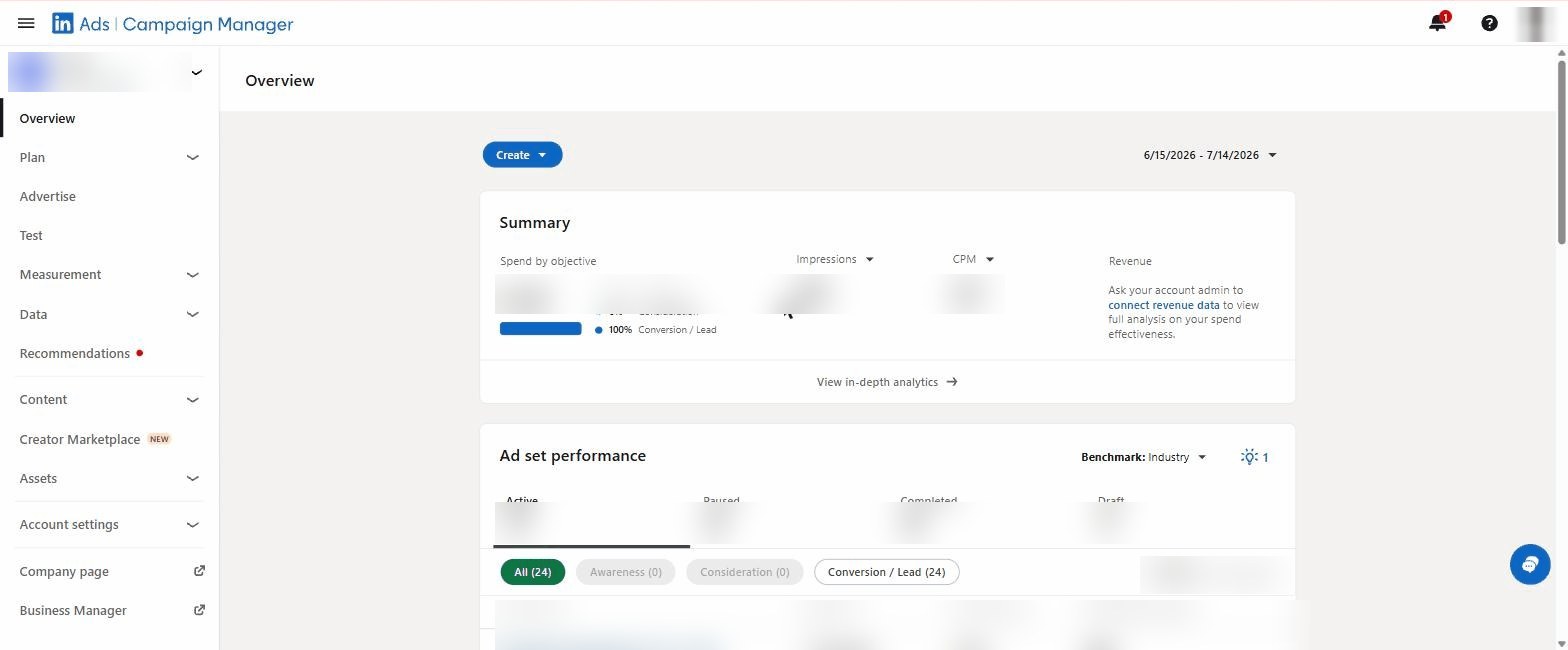
Open Campaign Manager
↗ linkedin.com/campaignmanagerLog in with your normal LinkedIn profile. Click to enlarge
Create an ad account
Name it after your business, pick your currency (locked once set), and connect your company's LinkedIn Page. Click to enlarge
Add billing
In Ad account settings → Billing centre, add your card. (Your billing page is private, so there's no screenshot for this step.) Your card, so you keep full spend control.
Two parts: add the agency or person you're giving access to on your ad account (Campaign Manager), and make them a content admin on your LinkedIn Page so they can run ads that post as your company.
Open “Manage access”
Left menu: Account settings → Manage access. You'll see everyone with access and their roles (the right-hand panel explains each role). Click to enlarge
Add these people
Click Add user (top right of the list; you need the Account manager role to see it), search each name or paste their profile links, and give the role Account Manager. Click to enlarge
Page access
On your LinkedIn Page: Settings → Manage admins → add them as Content admin. This lets ads run under your company name.Done
Remove or downgrade them any time from the same screens.
Want this as a branded checklist you can send?
Easier Access turns these guides into one branded link your clients follow, with live progress tracking. Eleven platforms, your brand on every link.
See pricing